
Local Accounts
Exhibitors and speakers require an account to access the Subsea Expo site and edit their profile information.
We prefer that you sign in using a Microsoft account if you have one. Please see our instructions for logging in with a Microsoft personal account or a Microsoft business account.
If you don't have a Microsoft account, or if the your company does not allow your business account to be used in federated authentication, you can create a local account. These accounts store a username and password in our system.
First Time Log In
After you have contacted our staff and have been informed that your exhibitor or sponsor record is ready for you to access, you will need to activate your account. This is a one-time only action.
To activate an account:
1. Open the Subsea Expo web site (https://www.subseaexpo.com/) in a browser.
2. Select the Sign In link at the top right.

3. On the sign in page, please select the Activate your Login link.
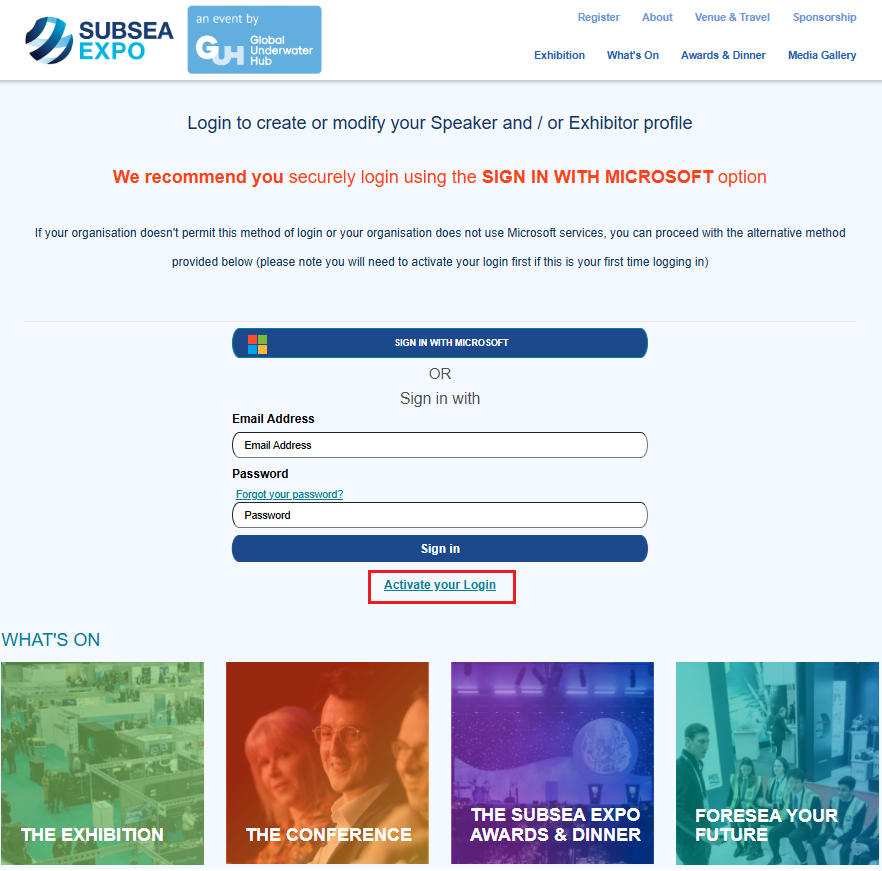
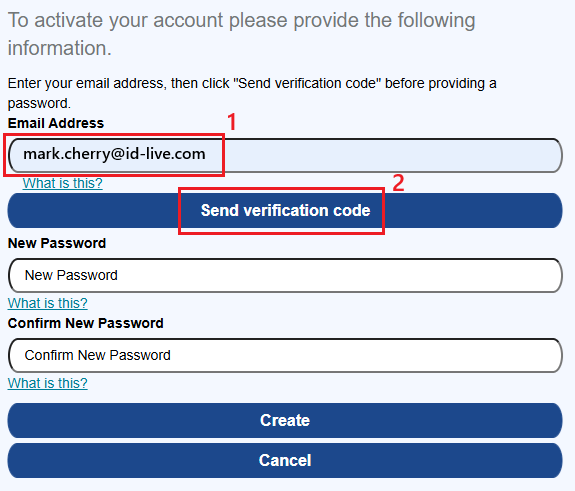
4. The form will change to display input fields for a new account. Enter your email in the Email Address field.
(Note: This must be the email address that our staff used to register your exhibitor or speaker records. This is so the system can match your new login to the account set up by GUH staff.)
5. Select the Send verification code button.
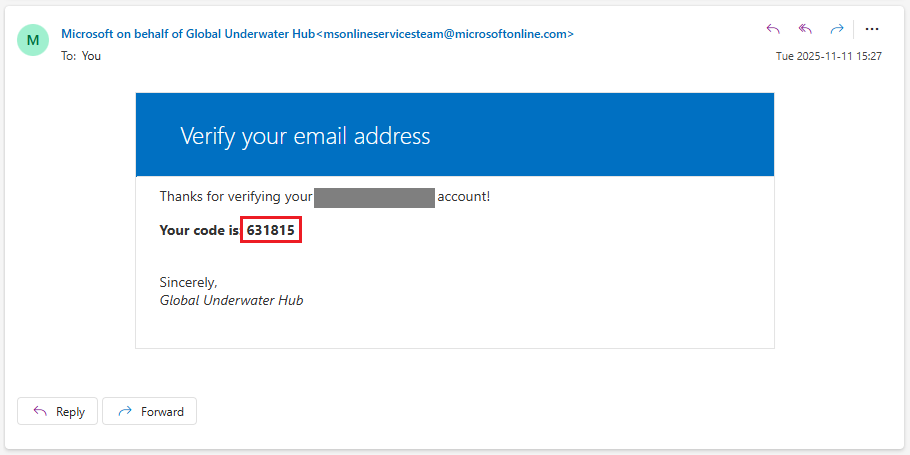
6. You will receive an email from Microsoft on behalf of Global Underwater Hub msonlineservicesteam@microsoftonline.com that will look like this:
7. The form will change to display an additional Verification code field.
1. Enter the code from the email in step 6. into the Verification code field on the form.
2. Select the Verify code button.
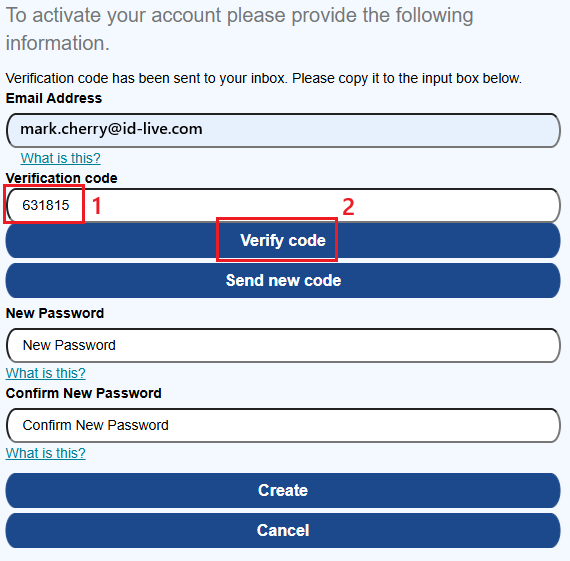
8. If verification is successful, the Verification code and related buttons will disappear. Now complete the form:
1. Enter a password in the New Password field. 8-16 characters, containing 3 out of 4 of the following:
- Lowercase characters
- uppercase characters
- digits (0-9)
- one or more of the following symbols: @ # $ % ^ * - _ + = [ ] { } | \ : , ? / ~ ( ) ; .
2. Enter the same password in the Confirm New Password field.
3. Select the Create button.
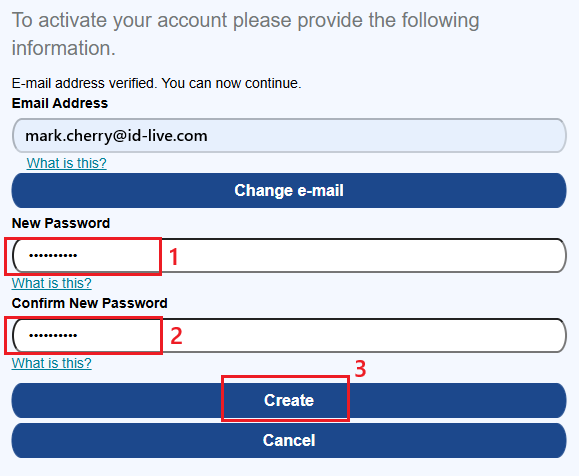
9. Wait for the registration process to complete. It can seem like nothing is happening for a little while, but you may notice a spinning icon in the tab of your browser. Please be patient.
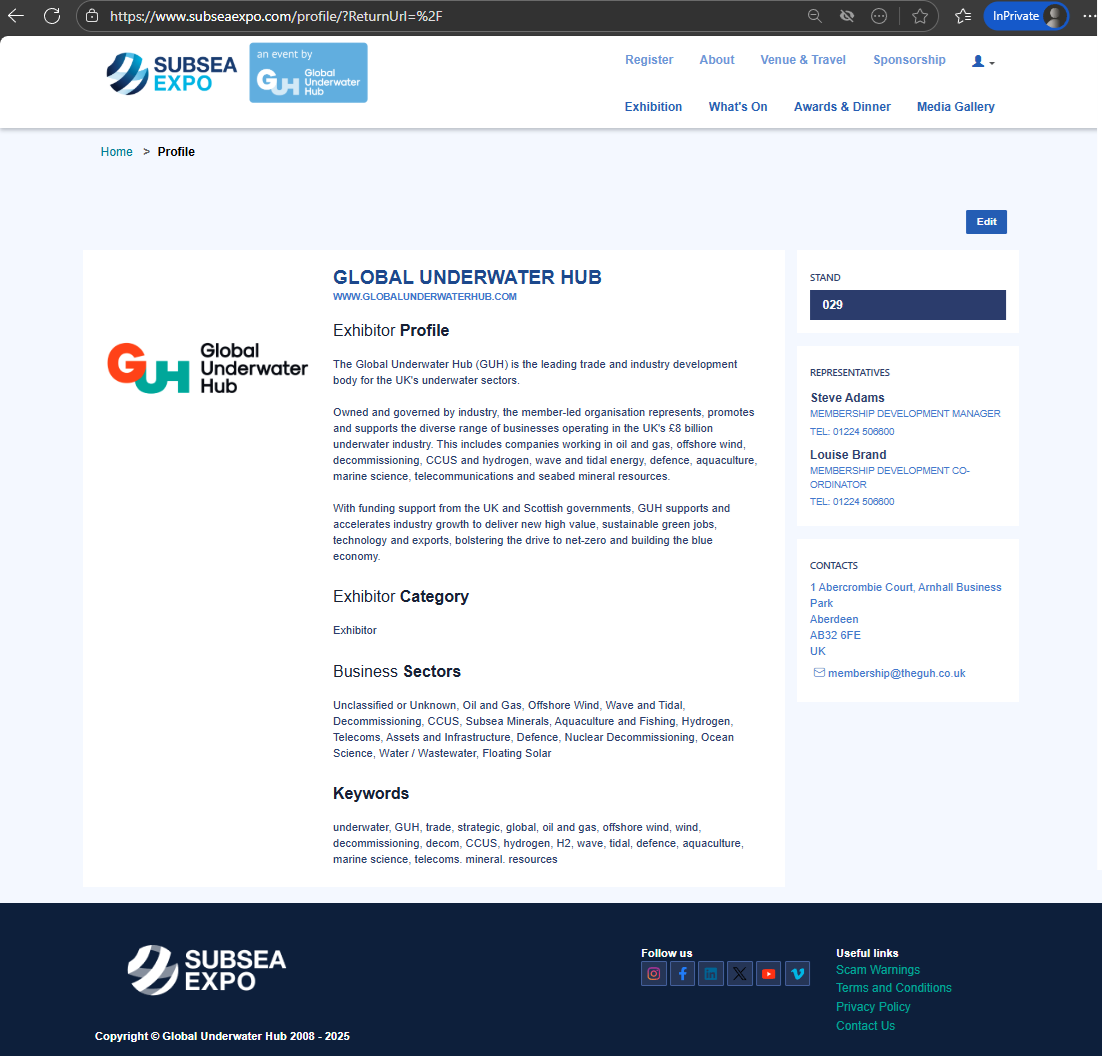
You should be sent to your Profile page on the web site.
Example:
Return to the Profile Page
If you navigate away from the profile page and wish to return to it:
1. Select the person icon from the top-right of the page.
2. Select the Profile link.

Log In on Future Visits
When returning to the site, you will use the fields on the front of the login form to sign in.
To log in on subsequent visits:
1. Please open the Subsea Expo web site (https://www.subseaexpo.com) in a browser.
2. Select the Sign in link at the top right.
3. On the login page:
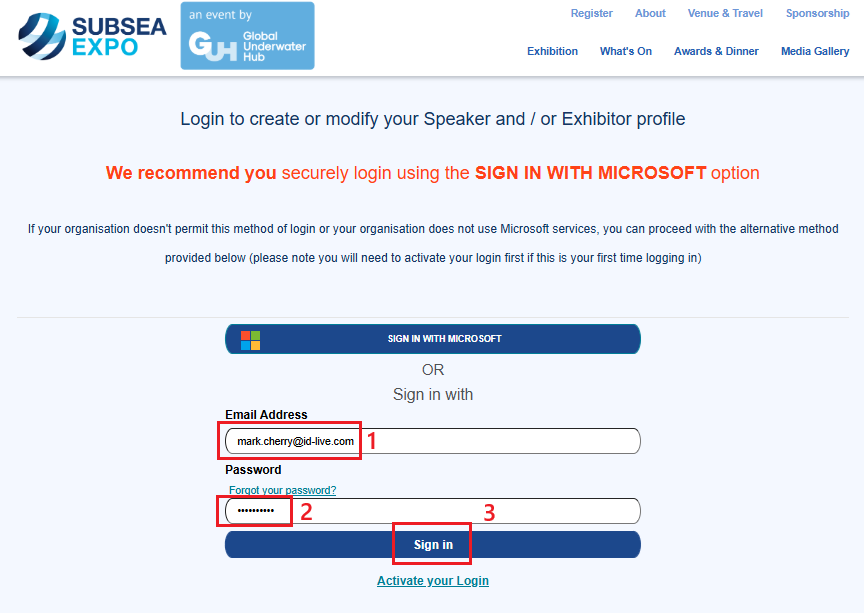
1. Enter your email address in the Email Address field.
2. Enter your password in the Password field.
3. Select the Sign in button.