
Microsoft Business Account
Exhibitors and speakers require an account to access the Subsea Expo site and edit their profile information.
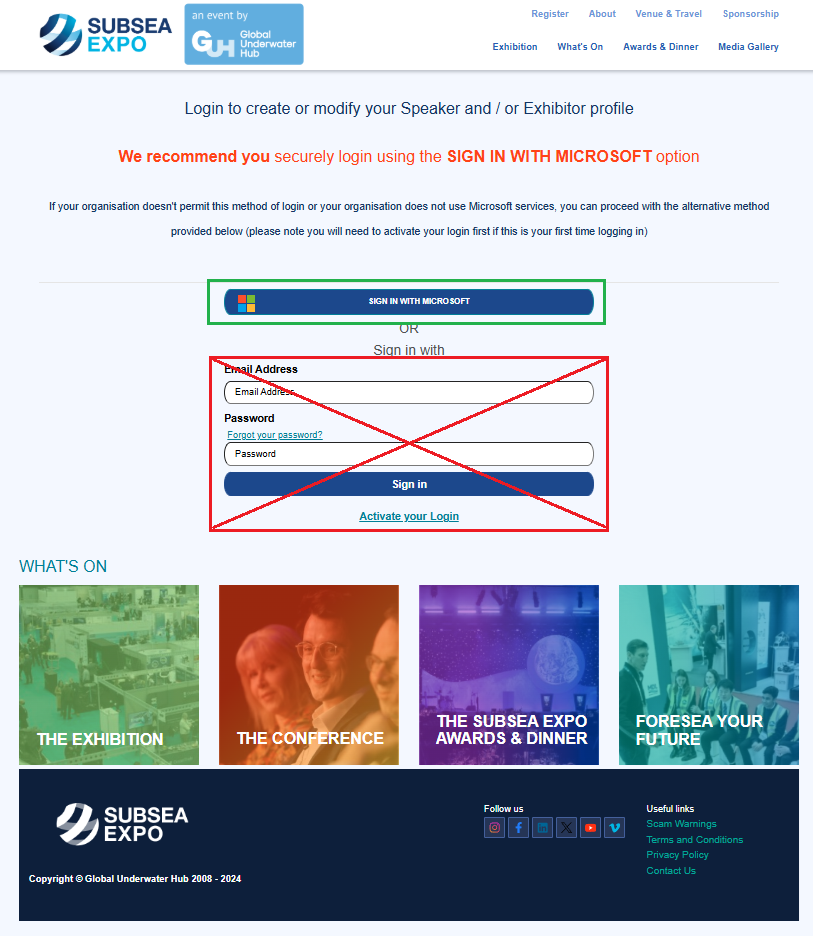
We prefer that you sign in using a Microsoft account if you have one.
If you don't have a Microsoft account, or if the your company does not allow your business account to be used in federated authentication, you can create a local account. Please see our instructions for logging in with a Local Account.
First Time Log In
After you have contacted our staff and have been informed that your exhibitor or sponsor record is ready for you to access, you will need to log in for the first time. During this login, your Microsoft account will be associated with your Subsea Expo account.
To log in:
1. Open the Subsea Expo web site (https://www.subseaexpo.com/) in a browser.
2. Select the Sign In link at the top right.

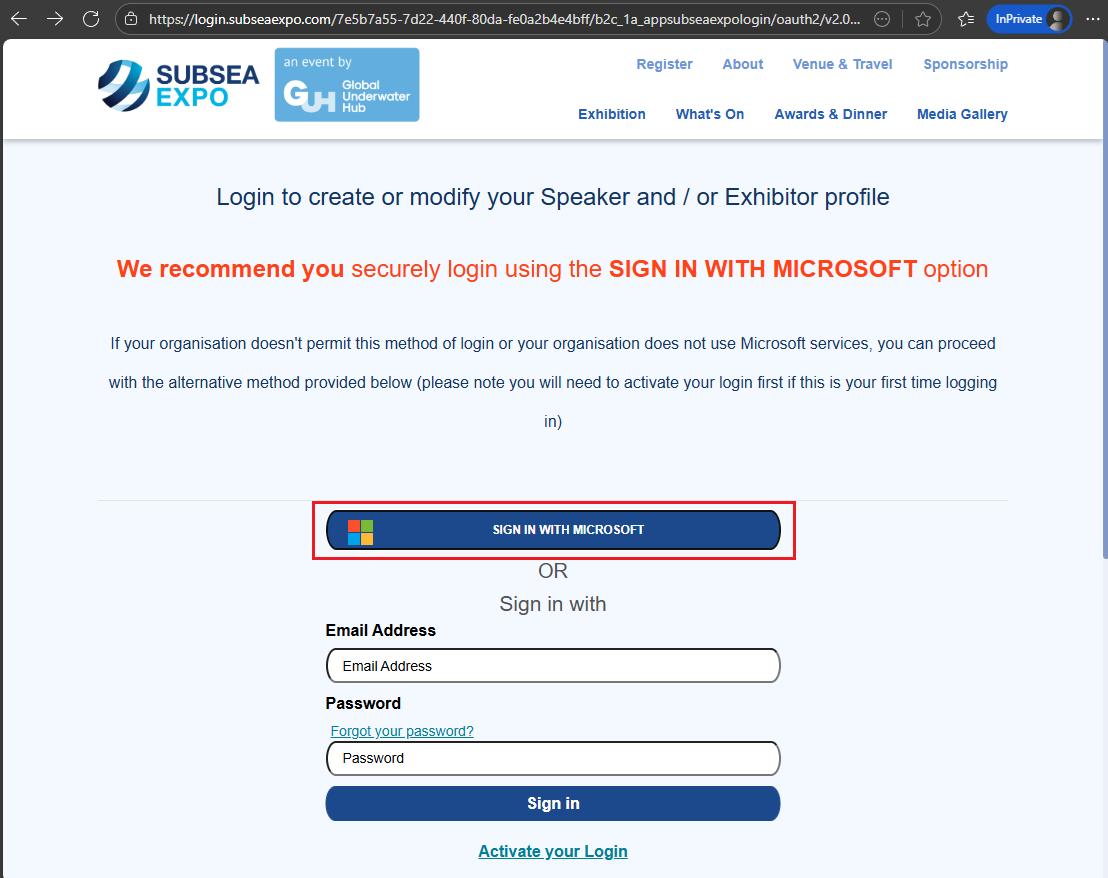
3. On the login page, please select the SIGN IN WITH MICROSOFT button.
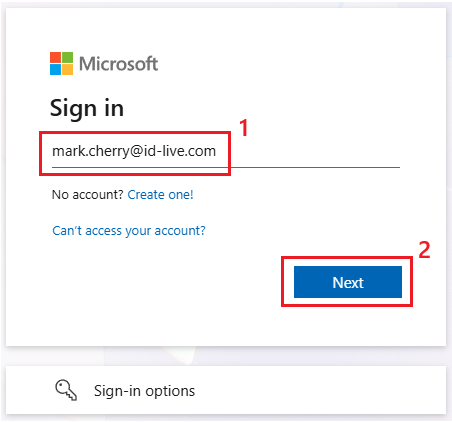
4. Enter your Microsoft business account email address on the Sign in form, then select the Next button.
Your account is provided by your company or education facility and probably has a custom domain name such as @yourbusinesss.com.
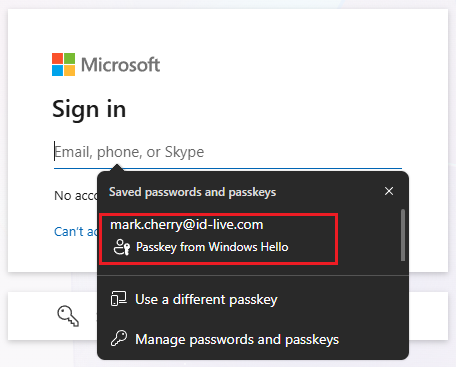
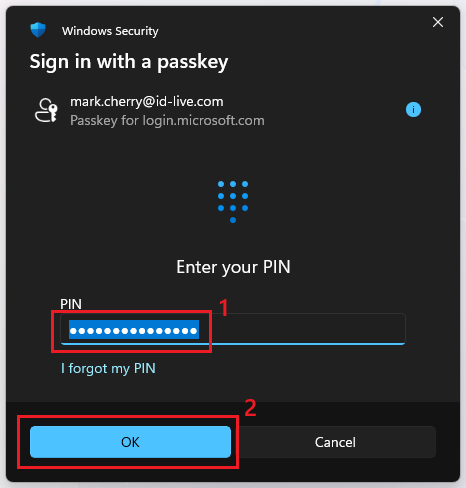
Alternatively, you may be prompted to select a Passkey. Selecting the Passkey will bypass any account type selection and prompt you to enter the PIN that you use to log into your computer.
Notes:
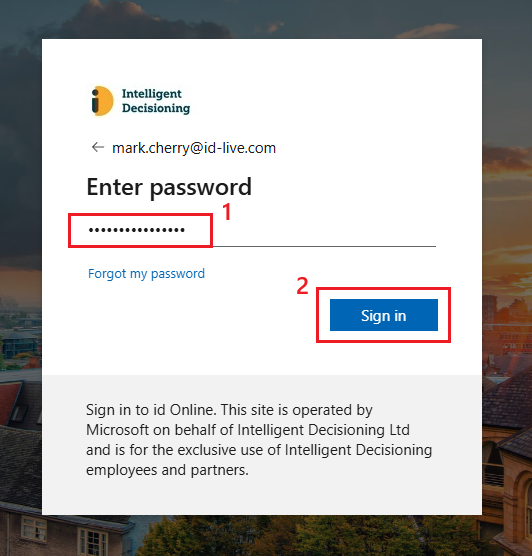
The Sign in, Work or school account, and Enter password forms are provided by Microsoft. They allow you to sign in to the Subsea Expo website using your Microsoft business account. Any request to change your password, confirm account details, or to authorise the login with additional steps are configured by your company.
If your company has implemented custom branding, you may see your company logo on the Enter password page. This should be the same process you would follow to log into a Microsoft site, e.g. https://www.office.com
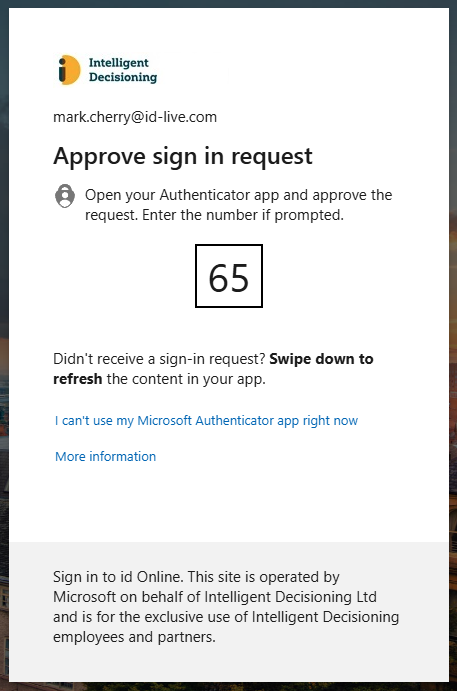
The exact sequence of screens from this point on varies depending on the settings applied to your account, for example, if you have Multi Factor Authentication (MFA) enabled, you will be challenged to approve the login request.
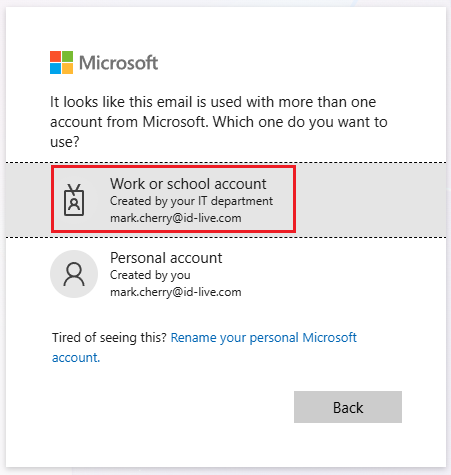
5. If you are asked to select the type of account, choose Work or school account.
6. On the Enter password form, enter the password that you use to log into your Microsoft account and select the Sign in button.
If you chose to log in using a Passkey, you will need to enter the PIN you use to log into your computer with.
7. Complete any additional log in pages required by your account.
Note: If you receive an error stating that federated authentication has been disabled for your account, you will need to talk to your business' IT department to request that this be allowed. If your company is unwilling to allow federated authentication, you will need to follow the instructions to sign up with a local account.
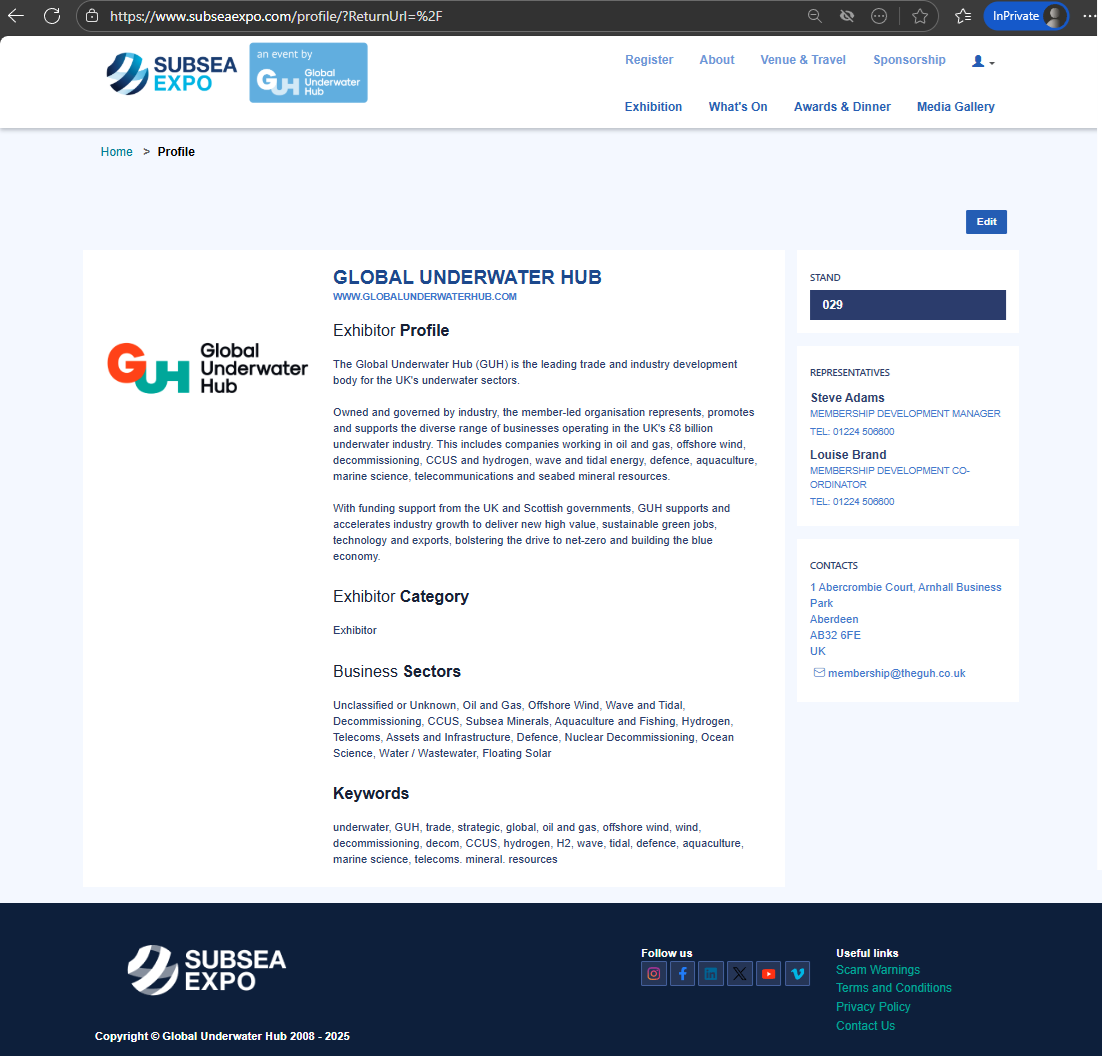
8. Once you have successfully signed in it will take a few moments to process your new login and retrieve your details from the back-end system. You should finally be redirected to a profile page that displays your Exhibitor details:
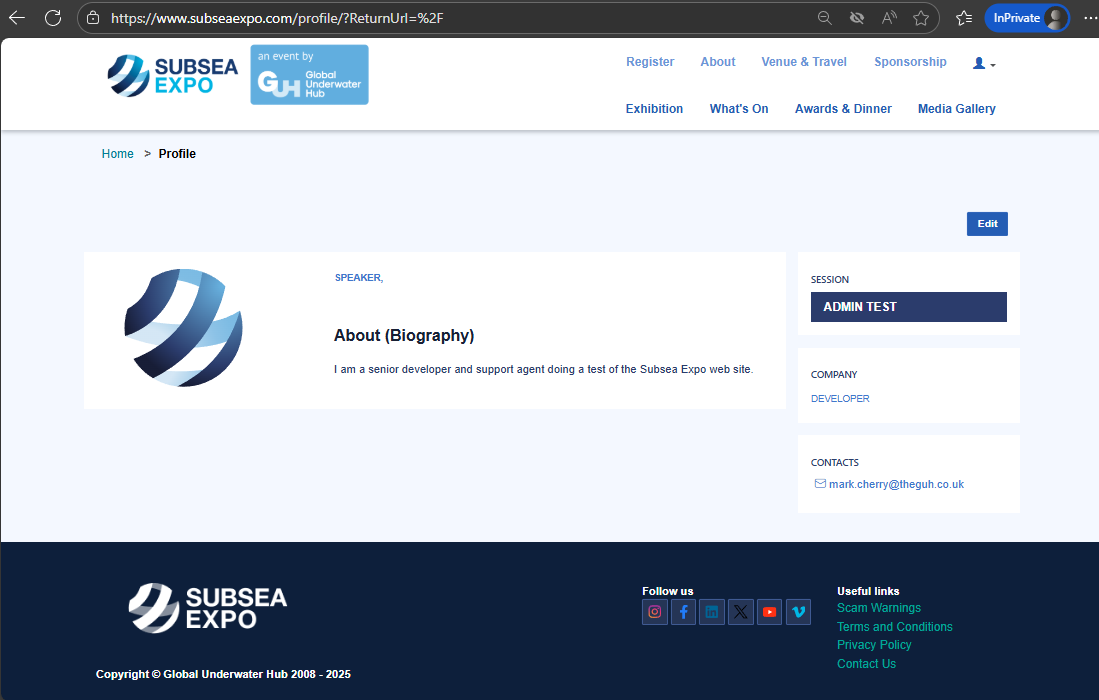
And/or your Speaker details:
Return to the Profile Page
If you navigate away from the profile page and wish to return to it:
1. Select the person icon from the top-right of the page.
2. Select the Profile link.

Log In on Future Visits
If you change the password, or any of the login settings for your business account, this will also change the password and how you log in to the Subsea Expo site with.
When returning to the Subsea Expo web site, you should follow the same steps detailed above, i.e. you should select the SIGN IN WITH MICROSOFT button. You should not use the email address and password controls on the front of the login form. These are only used for people without a Microsoft account.